Moving, Editing & Deleting
Selecting a node
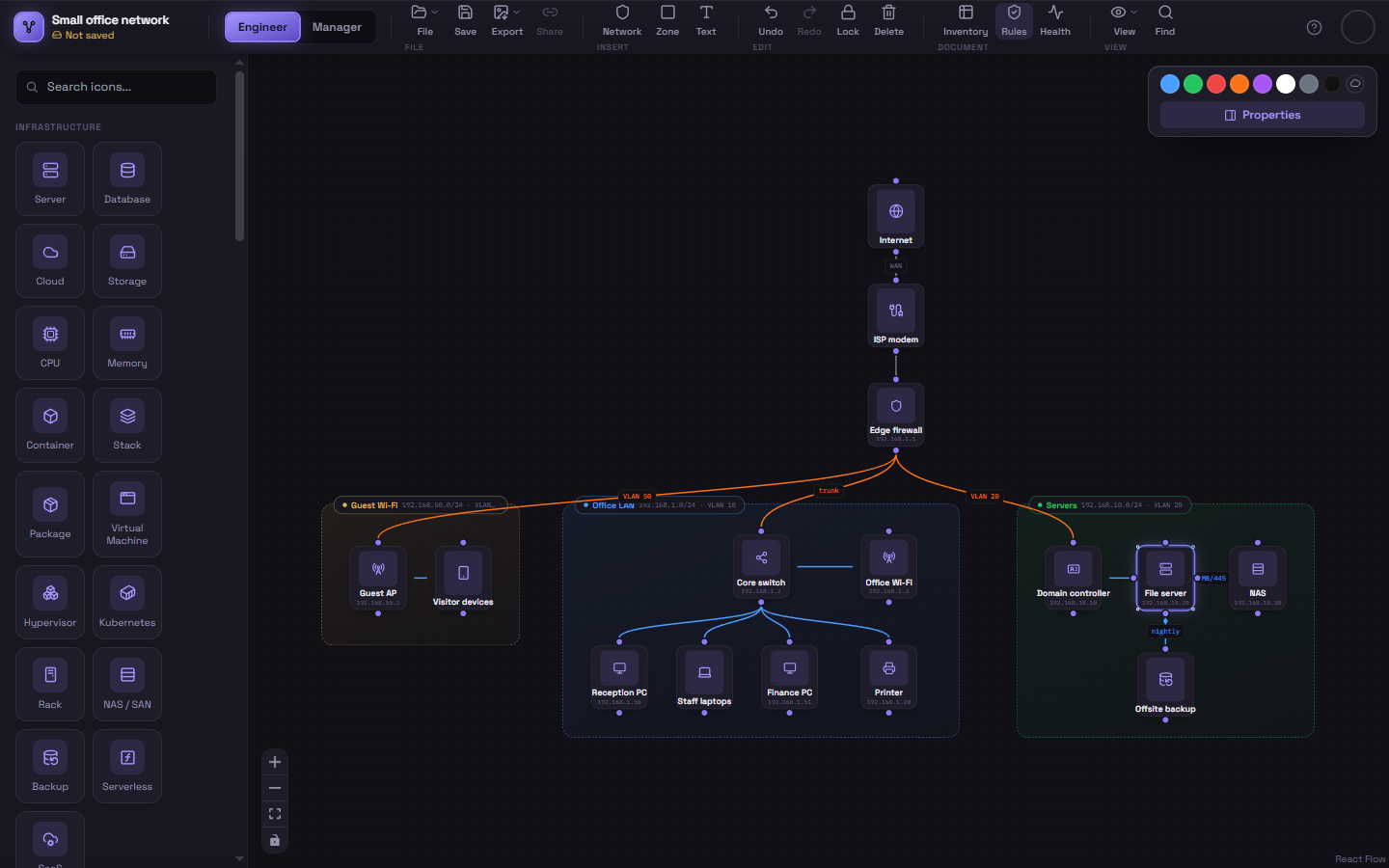
Section titled “Selecting a node”Click any node to select it. A selected node shows a highlighted outline with small resize handles at its corners, and the color toolbar appears in the top-right of the canvas.
Moving a node
Section titled “Moving a node”Click and drag a selected (or unselected) node to reposition it. If you drag it over a Zone or Network Segment, releasing it there nests it inside that container; dragging it back out to open canvas space un-nests it.
Resizing a node
Section titled “Resizing a node”With a node selected, drag any of the four corner handles to resize it. This is most useful for zones and segments (to make room for more nodes inside), but works on individual icon nodes too.
Renaming a node
Section titled “Renaming a node”Double-click the label under the node’s icon, type the new name, and press Enter or click away.
The right-click menu
Section titled “The right-click menu”Right-click any node to open its context menu:
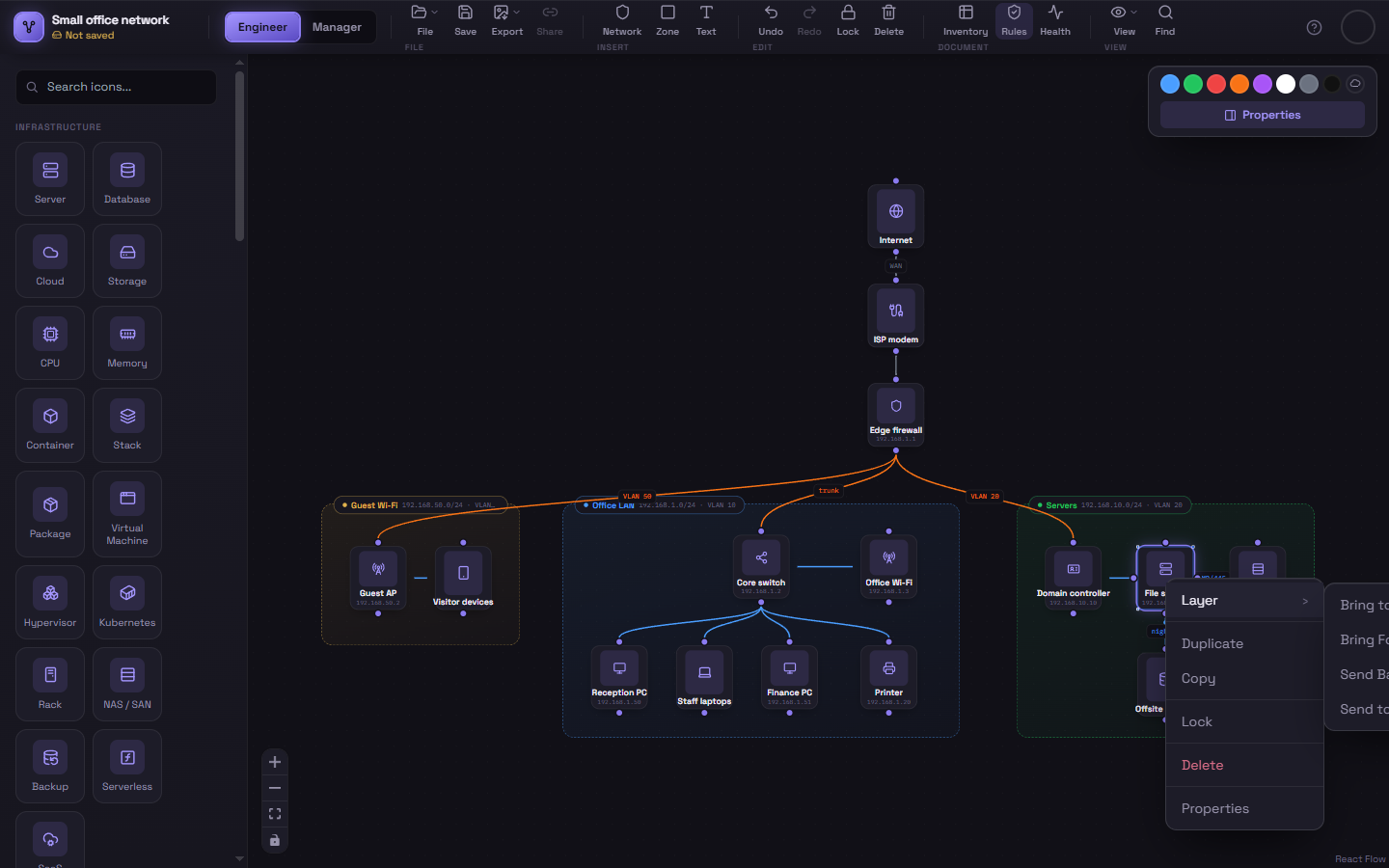
- Layer — a submenu to Bring to Front, Bring Forward, Send Backward, or Send to Back, for when nodes overlap.
- Duplicate — creates a copy of the node, offset slightly so you can see both. Duplicating a zone or segment copies everything inside it too.
- Copy — copies the node (and anything inside it) so you can paste it with Ctrl+V, including into the other view.
- Lock / Unlock — see below.
- Delete — removes this node, anything nested inside it, and any connections attached to them.
- Properties — opens the Properties panel for this node.
Copy, paste and undo
Section titled “Copy, paste and undo”The usual shortcuts work on whatever’s selected: Ctrl+C, Ctrl+X, Ctrl+V, Ctrl+D to duplicate, and Ctrl+Z / Ctrl+Shift+Z to undo and redo (also in the ribbon’s Edit group). Arrow keys nudge the selection a pixel at a time — hold Shift for ten. See Keyboard Shortcuts for the full list.
Locking a node (or several)
Section titled “Locking a node (or several)”Once part of a diagram is laid out the way you want, lock it so it can’t be bumped or resized by an accidental drag while you keep working on the rest of the canvas.
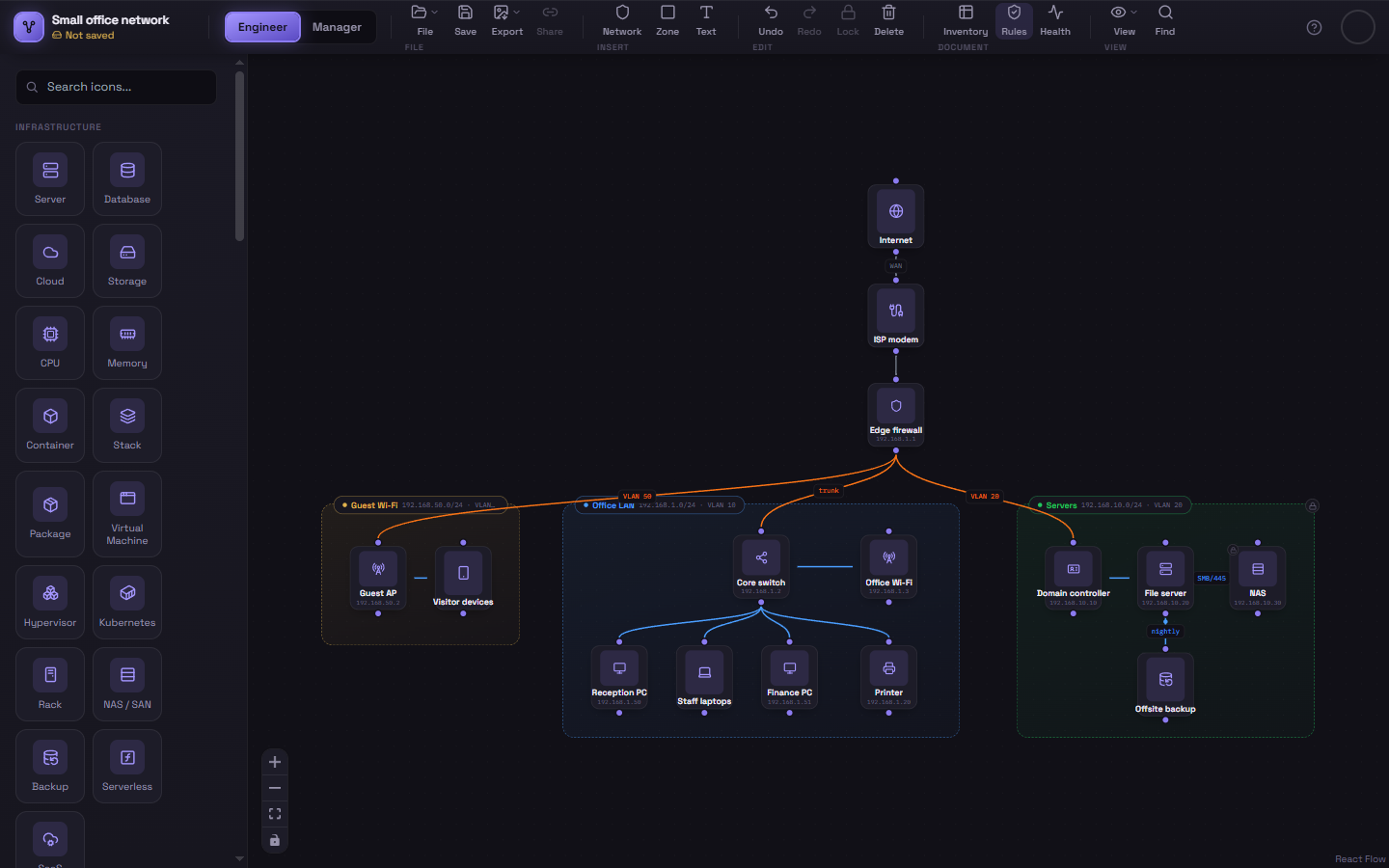
- Select one or more nodes — ctrl/cmd-click (or shift-click) each one, or drag a selection box over several — and click Lock in the ribbon’s Edit group. This locks everything currently selected at once, which is the fastest way to lock an entire region: select a Zone or Segment together with whatever’s nested inside it, then lock the whole selection in one click.
- A locked node shows a small padlock badge and can’t be dragged or resized until it’s unlocked. It can still be selected, recolored, and renamed — locking only protects its position and size.
- Click Lock again with locked nodes selected (it relabels itself Unlock) to release them. If your selection mixes locked and unlocked nodes, the button locks the rest of the selection first; click it again to unlock everything.
- Right-click a single node and choose Lock/Unlock from the context menu as a shortcut for just that one node.
Deleting
Section titled “Deleting”- Select a node (or multiple, by ctrl/cmd-clicking each one or shift-dragging a selection box) and press Delete or Backspace, or use the Delete button in the ribbon’s Edit group — this removes everything currently selected.
- Right-click a single node and choose Delete from the context menu to remove just that one.
- Deleting a zone or segment deletes what’s inside it as well. If you want to keep the contents, drag them out first.
- File → Clear this view empties the current view after asking you to confirm.
Every deletion can be undone with Ctrl+Z.