The Properties Panel
A device in Schema is more than a labelled icon. Every one can carry the details you’d otherwise keep in a spreadsheet — and those details are what power the inventory, the network checks, the compliance rules and the generated documentation.
Opening it
Section titled “Opening it”Select a device, zone or segment and click Properties in the toolbar that appears at the top-right of the canvas — or right-click it and choose Properties.
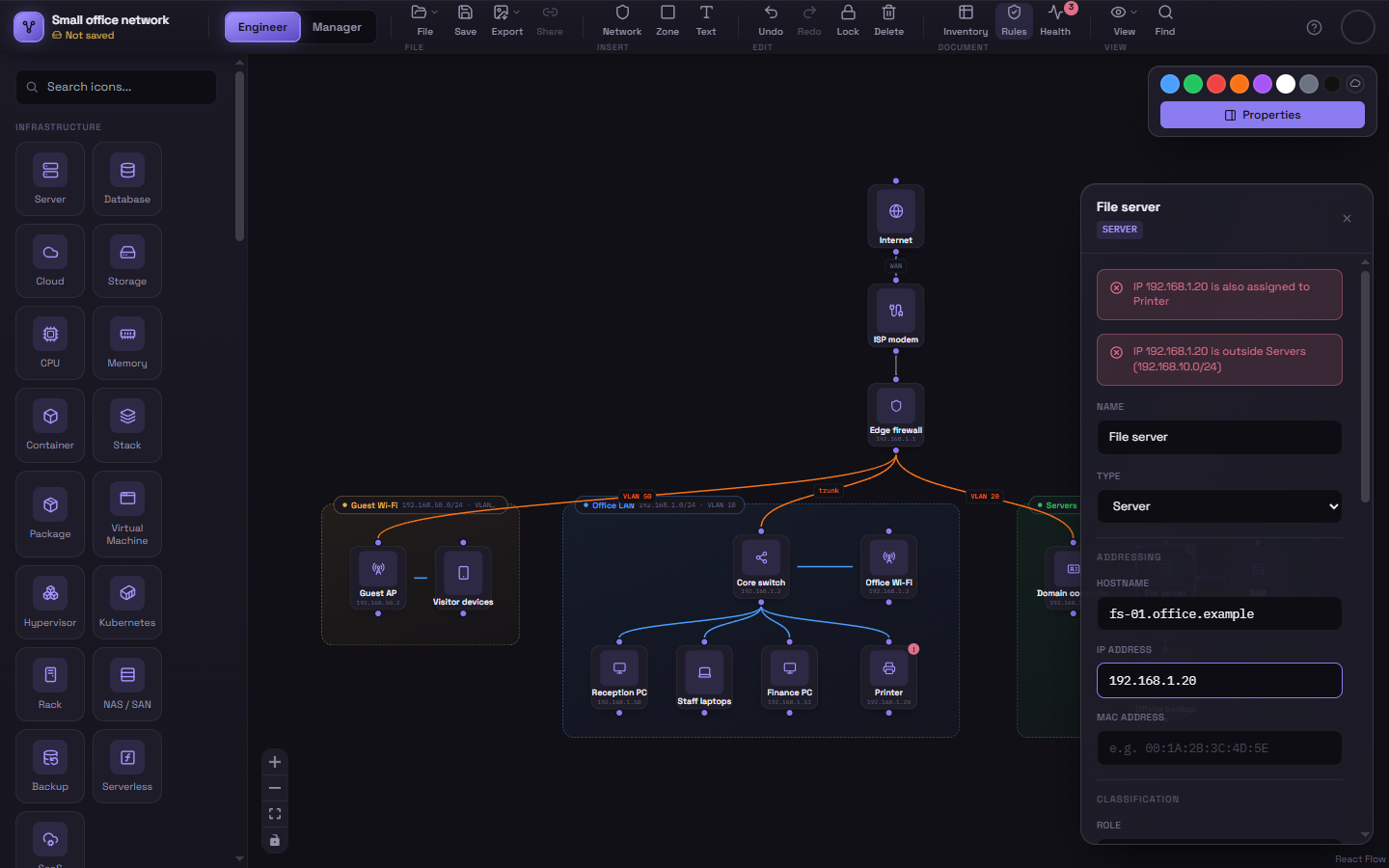
Device fields
Section titled “Device fields”| Field | Notes |
|---|---|
| Name | The label shown on the canvas. |
| Type | Which icon it is — change it here without redrawing the device or its connections. |
| Hostname | |
| IP address | One address, or several separated by commas for a multi-homed host. A prefix length (10.0.1.5/24) and IPv6 are accepted. Shown under the device on the canvas. |
| MAC address | |
| Multi-use machine | Tick this when the device is one of several drawings of the same machine, so its copies aren’t reported as duplicates — see Network Checks. |
| Role | Free text, with common roles suggested as you type (Web Server, Database Server, Domain Controller…). |
| Environment | Production, Staging, Development, Test, DR or Lab. |
| Criticality | Critical, High, Medium or Low. |
| Owner | The team or person responsible. |
| OS / firmware, Vendor / model, Serial / asset tag, Location | |
| Management URL | An http:// or https:// address; a link to open it appears beneath the field. |
| Notes | Anything else worth recording. |
| Custom fields | Any number of your own name/value pairs — warranty date, cost centre, change ticket. |
Everything is optional. Fill in what’s useful to you; rules can require the rest (see Building a Rule).
Changes apply as you type and can be undone like any other edit. They’re saved with the diagram.
Zone and segment fields
Section titled “Zone and segment fields”Zones and network segments have three: Subnet (CIDR), VLAN ID and a Description. The subnet and VLAN are shown in the container’s label on the canvas, and setting a subnet is what lets Schema check the devices inside — see Network Checks.
Findings
Section titled “Findings”If anything is wrong with what you’ve selected — a rule it breaks, an address that doesn’t fit its subnet — it’s listed at the top of the panel, red for an error and amber for a warning, matching the badge on the canvas.
Closing it
Section titled “Closing it”Click the × in the panel’s top-right corner, press Esc, or open Properties on something else to switch to it.