What Rules Do
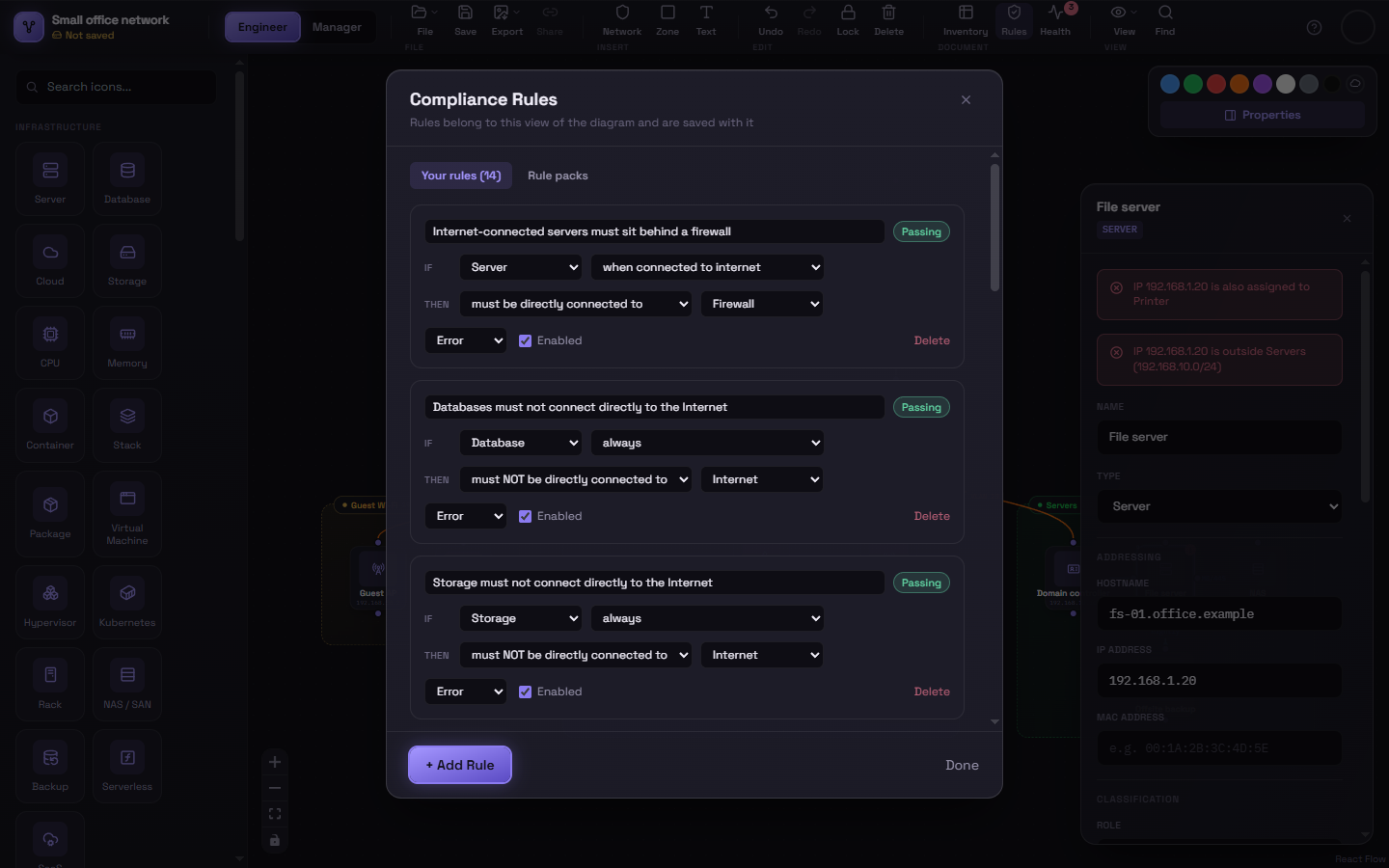
Compliance rules let you describe architecture requirements once — “servers must sit behind a firewall,” “workstations must not touch the internet directly” — and have Schema check every node against them automatically, live, as you build and edit the diagram.
Opening the rule editor
Section titled “Opening the rule editor”Click Rules in the ribbon’s Document group.
Starting from a rule pack
Section titled “Starting from a rule pack”You don’t have to write rules from scratch. The Rule packs tab offers ready-made sets — Perimeter & segmentation, Documentation completeness, Resilience basics, Zero trust access — and Add copies a pack’s rules into your diagram. From then on they’re ordinary rules: edit, disable or delete any of them.
Packs are general good practice. They aren’t an implementation of any specific compliance framework.
Reading a rule
Section titled “Reading a rule”Every rule reads like a sentence: IF a node matches some type (and optionally a condition), THEN it must (or must not) satisfy some relationship to other nodes. For example:
IF a node is a Database, THEN it must have field IP Address set.
IF a node is a Workstation, THEN it must NOT be directly connected to Internet.
Where warnings show up
Section titled “Where warnings show up”When a node violates an enabled rule:
- A small colored badge (!) appears on the node itself, out on the canvas — amber for a warning, red for an error. Hover it to read the message.
- The full message appears at the top of that node’s Properties panel.
- It’s listed in the Health panel, which gathers every open finding in the view — and the ribbon’s Health button shows the count.
- In the rule editor, each rule shows how many nodes are currently failing it, so you can tell at once whether a rule you just wrote does what you meant.
Alongside your own rules, Schema runs a set of built-in network checks — duplicate IPs, hosts outside their subnet — that need no configuration.
Warnings update live — connect a firewall, and a warning about a missing firewall disappears immediately; disconnect one, and it comes back.
Rules are per-view
Section titled “Rules are per-view”Engineer View and Manager View each have their own independent set of rules — a rule you write in Engineer View doesn’t apply in Manager View, and vice versa.
Rules travel with the file
Section titled “Rules travel with the file”Rules are saved as part of the diagram (see Saving & Opening) — anyone who opens it gets the same rules you defined, and they’re listed in the generated documentation.
Next: building a rule
Section titled “Next: building a rule”See Building a Rule for the full reference of every condition and relationship the rule editor supports, with examples.